




Best Mac for Video Editing on a Budget (2026 Guide)
Best Mac for Video Editing on a Budget (2026 Guide)
By Ramzan "Ray" Harji, Certified Apple Refurbisher · MacPro-LA, Hollywood · 15 years & 100,000+ Macs sold · Updated June 2026
Quick answer
The best refurbished Mac for Video Editing Budget 2026 depends on your workflow, but our top pick for most is the MacBook Pro 14" M3 — balances performance, portability, and price. For lighter use, the MacBook Air M2/M3 wins. Buying refurbished saves 25-50% vs Apple retail, includes a 1-year warranty, and gets you the same M-series performance as new. See our ranked picks, RAM/storage guidance, and FAQ below.
Video editing is one of the most demanding tasks you can throw at a computer. It needs fast processing power, lots of RAM, a good display, and fast storage. Macs have been the go-to choice for video editors for decades — but Apple's prices can make your eyes water.
Here's the good news: you don't need to spend $3,000+ to get a Mac that handles video editing. We'll show you the best options at every price point, from $399 to $1,899.
What Specs Actually Matter for Video Editing
Before we get into specific models, here's what to prioritize:
RAM (Unified Memory) — The Most Important Spec
Minimum: 16GB. Recommended: 24-36GB. Ideal: 48GB+
RAM determines how smoothly your timeline plays back, how many effects you can stack, and how large your projects can be. 8GB will struggle with anything beyond basic 1080p editing. 16GB handles 4K comfortably for most projects. 24-36GB gives you headroom for complex timelines with lots of effects.
Processor — Apple Silicon Changed Everything
Any Apple Silicon chip (M1 or newer) is capable of video editing. The difference between M1 and M4 is speed — how fast it renders, how smooth the playback is with effects. But even an M1 can edit 4K video. The Pro and Max chip variants add dedicated media engines that dramatically speed up encoding and decoding of ProRes and H.265 video.
Storage — Get More Than You Think
Minimum: 512GB. Recommended: 1TB+
Video files are huge. A single hour of 4K ProRes footage is roughly 110GB. You'll fill 256GB before your first project is done. 512GB is workable if you use external drives. 1TB or more is comfortable.
Display — Size and Color Accuracy
For color grading, you need P3 wide color gamut. All modern Mac displays support this. Screen size is personal preference, but bigger is better for timeline editing. The 16-inch MacBook Pro and 27-inch iMac/Studio Display are ideal.
Best Macs for Video Editing — Every Budget
Budget: Under $500 — Mac Mini M1 ($399)
Specs: M1 chip (8-core CPU, 8-core GPU), 16GB RAM, 256GB-512GB storage
Yes, you can start video editing for under $500. The Mac Mini M1 paired with a monitor you already own (or a budget 4K display) is a legitimate video editing setup. It handles 1080p editing effortlessly and manages 4K timelines with some patience on effects-heavy sections.
Best for: YouTube creators doing basic cuts and edits, beginners learning video editing, content creators on a tight budget
Limitations: Only 8GB RAM on base models (look for 16GB configs), slower renders on complex projects, no built-in display
Pair it with: A 4K monitor ($200-400), external SSD for project files ($80-150)
Budget: $500-$800 — MacBook Pro 13" M1 or M2 ($549-$699)
Specs: M1/M2 chip, 16GB RAM, 256-512GB storage, 13" Retina display
This gives you a complete portable editing setup — no external monitor needed (though one helps). The M2 is about 20% faster than M1 in video export times. Both handle 4K editing in Final Cut Pro, DaVinci Resolve, and Adobe Premiere.
Best for: Mobile editors, freelance videographers who edit on location, students in film programs
Limitations: 13" screen is small for timeline editing (consider an external monitor), no ProRes media engine on base M1/M2
Budget: $800-$1,200 — MacBook Pro 14" M2 Pro or M3 Pro ($849-$1,099)
THE SWEET SPOT FOR MOST VIDEO EDITORS
Specs: M2 Pro or M3 Pro (12-core CPU, 18-core GPU), 16-18GB RAM, 512GB-1TB storage, 14" Liquid Retina XDR display
This is where video editing gets serious. The Pro chip variant includes a dedicated ProRes media engine that makes a massive difference — ProRes encode/decode is up to 2x faster than the base chips. The 14" XDR display with 1600 nits HDR brightness is studio-grade color accurate.
Best for: Professional freelance editors, wedding videographers, corporate video producers, YouTube creators who want smooth 4K editing with effects
Why this is the sweet spot: The jump from base M-chip to Pro-chip is the biggest real-world improvement you'll feel in video editing. Going from Pro to Max gives diminishing returns for the money.
Budget: $1,200-$1,500 — MacBook Pro 16" M2 Pro or M3 Pro ($1,199-$1,399)
Specs: M2 Pro or M3 Pro, 16-18GB RAM, 512GB-1TB, 16" Liquid Retina XDR display
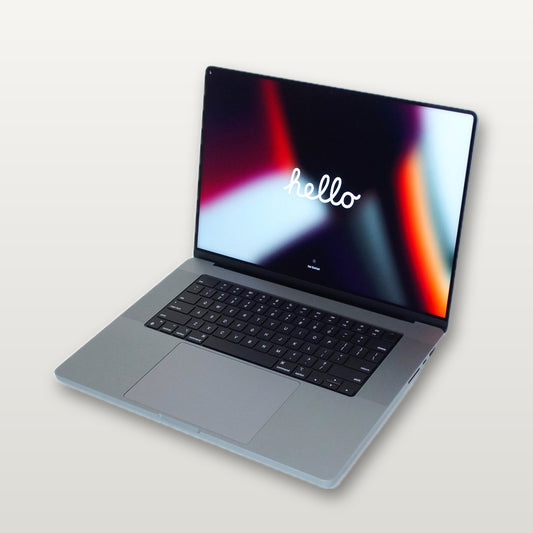
Same chip as the 14-inch, but with a 16-inch display that makes timeline editing much more comfortable. If you do a lot of editing without an external monitor — on set, in coffee shops, while traveling — the 16-inch screen is worth the extra cost. You can fit your timeline, viewer, and bins all on one screen without everything being cramped.
Best for: Editors who work on the go, filmmakers who need the bigger screen, professionals who want one machine for everything
Budget: $1,500-$1,900 — MacBook Pro 16" M3 Max or Mac Studio M1 Max ($1,599-$1,899)
Specs: Max chip (up to 16-core CPU, 40-core GPU), 36-64GB RAM, 1TB+ storage
This is overkill for most editors but perfect if you work with 6K/8K footage, RED RAW, multi-cam timelines, or heavy VFX compositing. The Max chip's 400+ GB/s memory bandwidth means your timeline stays smooth even with dozens of 4K streams and effects stacked up.
The Mac Studio is the desktop alternative — same Max chip, more ports, better sustained performance (bigger cooling), and pairs beautifully with the Apple Studio Display or any 4K/5K monitor.
Best for: Full-time professional editors, post-production houses, filmmakers working with high-resolution RAW footage, VFX artists
Quick Comparison Table
| Machine | Price | 4K Editing | 8K/RAW | ProRes Engine | Portable |
|---|---|---|---|---|---|
| Mac Mini M1 | $399 | Good | No | No | No (desktop) |
| MacBook Pro 13" M2 | $649 | Good | No | No | Yes |
| MacBook Pro 14" M3 Pro | $1,099 | Excellent | Capable | Yes | Yes |
| MacBook Pro 16" M3 Pro | $1,399 | Excellent | Capable | Yes | Yes |
| MacBook Pro 16" M3 Max | $1,899 | Overkill | Excellent | Yes (2x) | Yes |
| Mac Studio M1 Max | $1,599 | Overkill | Excellent | Yes (2x) | No (desktop) |
Which Video Editing Software Runs Best on Mac?
Final Cut Pro
Apple's own editor is optimized for Apple Silicon better than any other NLE. It takes full advantage of the media engines, unified memory architecture, and GPU acceleration. If you're buying a Mac specifically for video editing, Final Cut Pro is the natural choice. One-time purchase of $299 (or free trial available).
DaVinci Resolve
Blackmagic's DaVinci Resolve is free and incredibly powerful. The free version handles 4K editing, color grading, audio mixing, and basic VFX. It runs great on Apple Silicon and is the best free option for serious editors. The paid Studio version ($295 one-time) adds multi-GPU support and advanced features.
Adobe Premiere Pro
The industry standard in many production houses. Runs well on Apple Silicon Macs, though it's generally less optimized for Mac than Final Cut Pro. Requires a Creative Cloud subscription ($22.99/month). Best if you're already in the Adobe ecosystem with After Effects, Photoshop, etc.
Tips to Maximize Your Editing Mac
- Edit from an external SSD — Keep your boot drive clean by editing projects from a fast external Thunderbolt or USB-C SSD. Samsung T7 or SanDisk Extreme are great budget options.
- Use optimized media — In Final Cut Pro and Premiere, create optimized/proxy media for smoother editing, then switch to full resolution for final export.
- Close other apps while editing — Free up RAM by closing browsers, email, and other apps during heavy editing sessions.
- Use ProRes when possible — If your camera supports it, shoot in ProRes. Mac's hardware media engines are specifically designed for ProRes and it edits much more smoothly than H.264/H.265.
- Keep at least 20% of your SSD free — macOS uses SSD space for virtual memory. A nearly full drive will slow everything down.
Ready to Build Your Editing Setup?
Our recommendation for most video editors: the MacBook Pro 14" with M3 Pro at $1,099. It gives you the ProRes media engine, the XDR display, and enough power for professional 4K editing — at a price that used to buy a base MacBook Air.
Browse our MacBook Pro collection or check out the Mac Studio lineup for a desktop setup.
Need help choosing? Call or text us at (323) 378-5603 — our team edits video too, and we'll steer you to the right machine for your workflow.
